
Amazon Quick installs as an extension inside Excel, Word, PowerPoint and Outlook. It does not just read your files. It acts on them.
It builds a dashboard as a new sheet in your workbook. It writes comments into your contract and redlines clauses with tracked changes. It creates a branded deck from a spreadsheet. It drafts an email reply using data you hand it.
It does this by generating and executing code inside the app's sandbox, which is why it performs actions rather than only summarizing.
Below are the use cases, the prompts, and the techniques that made the biggest difference in live sessions.
Why this matters
Many organizations bought AI licenses and are still waiting for value. The tool works. Usage is thin.
For most people AI is not yet a habit, so they do not see the value. We work with large enterprise clients and this is what we see most.
Licenses land, a launch email goes out, and six weeks later there is a small group of heavy users and a long tail of people who opened the app once.
What changes that is showing people a task they already do every week, done faster, in the app they already have open.
Still choosing a platform? Start with Amazon Quick vs Microsoft Copilot: An IT Leader's Guide.
Where these examples come from
An AI Champions program with a national beverage distributor. Roughly 200 Quick licenses across leadership and a champions network, scaling toward approximately 1,500 users.
The program ran as a sequence: getting started, Spaces and deep research, agents, then Quick inside Microsoft 365.
Team-specific sessions ran alongside it for analytics, operations and customer development groups. Everything below came out of those sessions.
Excel: analysis plus action
Open a workbook and click Amazon Quick in the ribbon. You are working in context, with no exporting and no separate chat window.
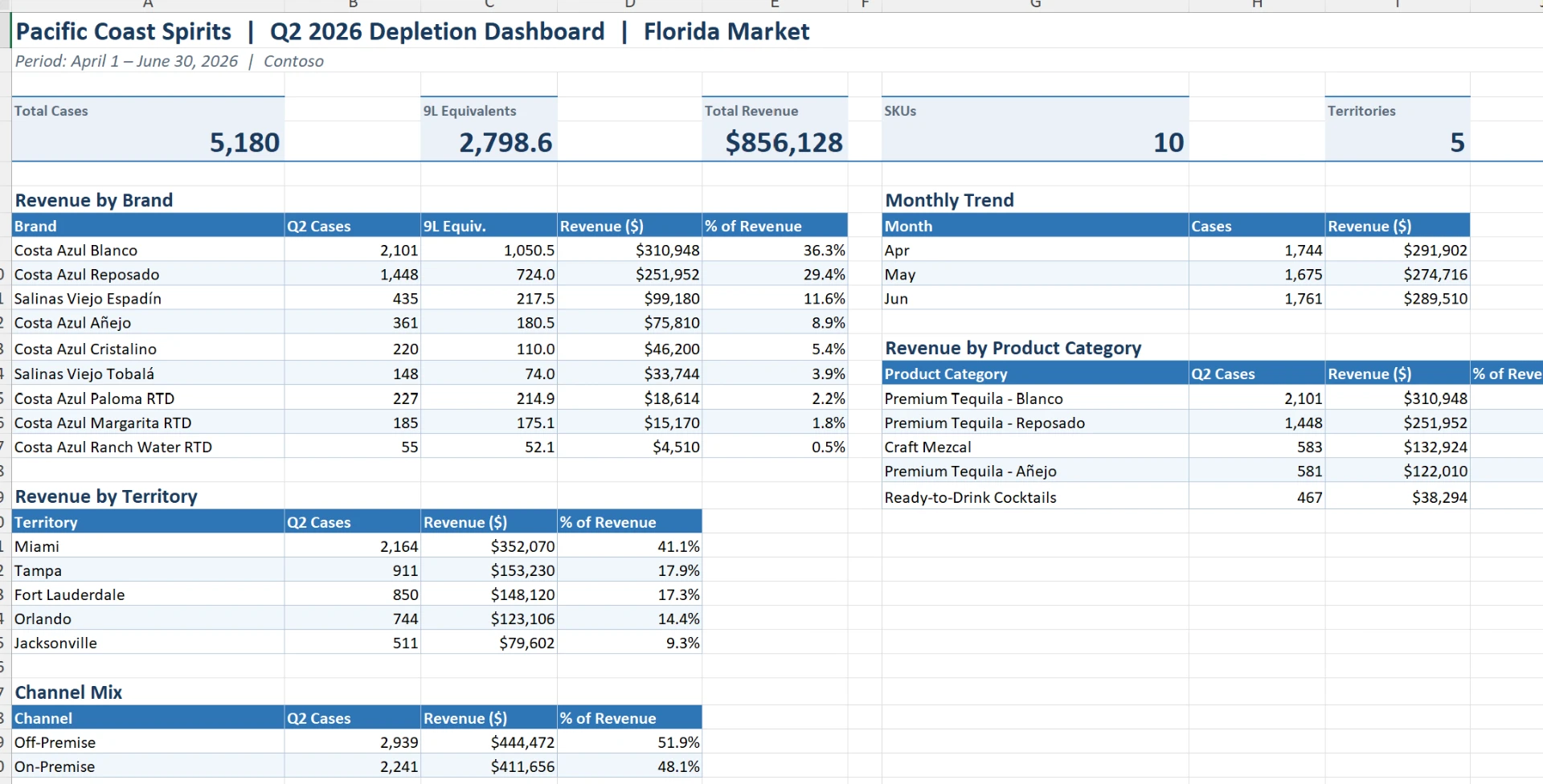
In the session we opened a depletion report and used one prompt:
Create a dashboard from this depletion report.
Quick built a new sheet inside the workbook with charts and summaries in place.
Prompts that work
A dashboard in the file
Create a dashboard from this depletion report
A chart, across tabs
Show me a bar chart of trade spend by distributor
Exception finding
Which SKUs are Critical with lead times over 14 days?
Filter plus new columns
Filter to Florida accounts over $50K, add YoY growth
Auditability
Make sure the revenue by brand cells are wired to the source data
Branding
Apply our brand colors and add the logo to this dashboard
Quick reads across multiple tabs in the same workbook, so you do not need to consolidate first.
Wire the cells to the source. AI output needs checking. Ask Quick to connect summary cells to the source data so any number can be traced back.
Ask for the prompt back. If you like what it built, say Give me the prompt I need to replicate this dashboard, then share that prompt with your team.
Turn it into a skill. Give Quick the instructions and ask it to create a skill. Next time you ask for that dashboard, it recognizes the skill and produces the same output every time. This is the difference between a one-off and a repeatable process.
Use its memory for branding. Tell Quick once to remember your brand colors and attach the logo file. Later prompts pull from that memory.
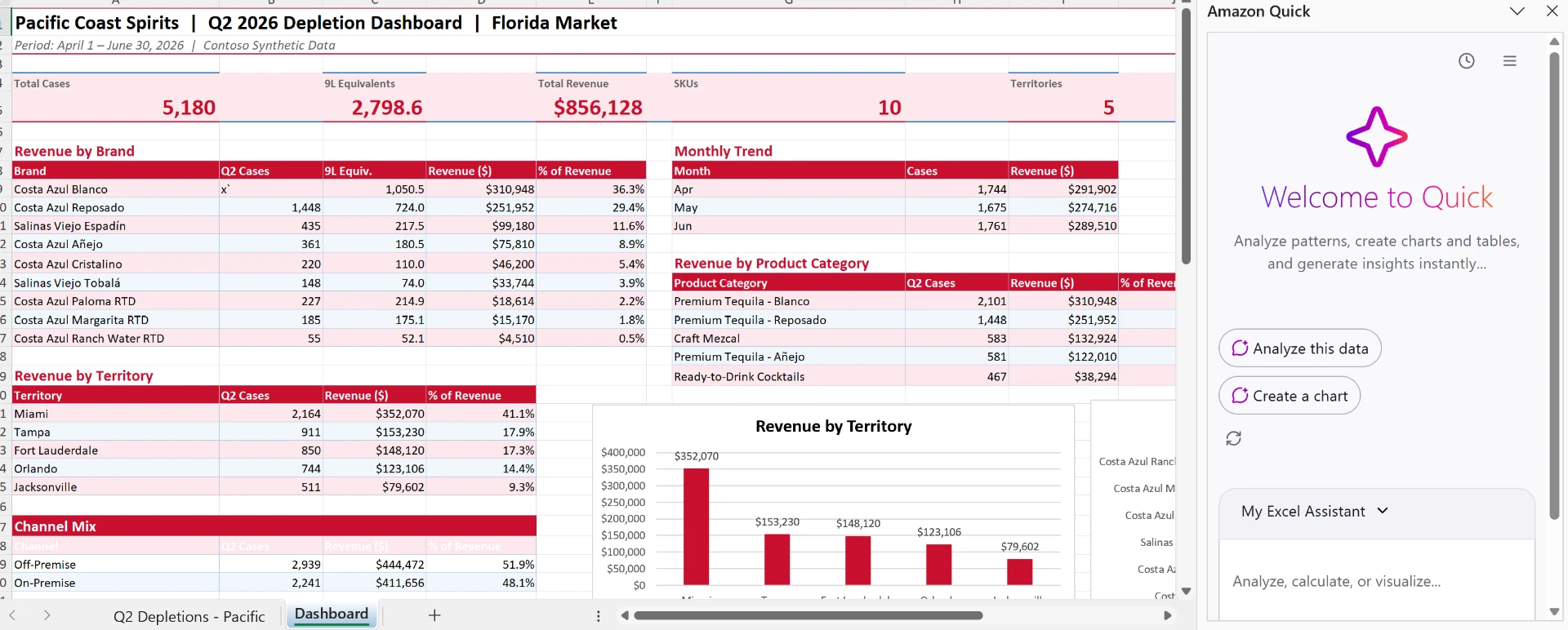
Be specific. Asking to "make this brand compliant" applied the colors to the table but skipped the chart. Naming the chart would have caught it. Treat it like briefing a junior analyst.
Word: contracts and documents
Contract review. On a supplier agreement we ran: Any non-standard clauses or risks I should be aware of? Add comments to flag each and explain what may constitute a risk.
Quick read the agreement and left margin comments flagging a unilateral exclusivity downgrade, a pricing schedule needing finance review, and a volume discount worth checking.
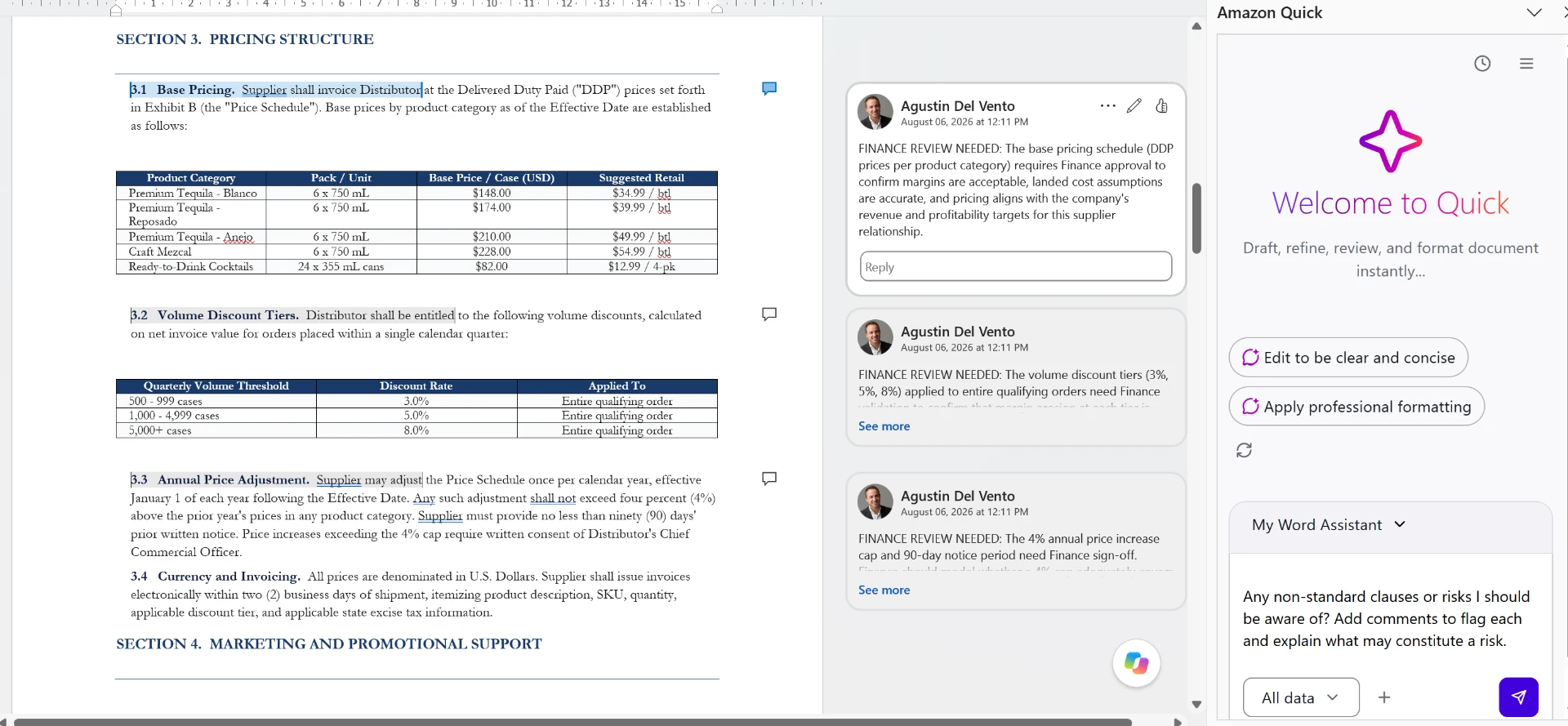
That is the shift worth noticing. Most people think of AI as digesting information. Here it is helping you decide where risk sits.
Compare versions. Attach the second file and ask What changed between version 1 and 2 of this contract? It returned the removed exclusivity territory list at a glance, no reading required.
Point it at a Space instead of a single attachment and it can compare across many agreements at once.
Redline a section. Select the paragraph first. The selection is added to the chat, so Quick works on that section rather than the whole document.
Then ask it to revise the section in your favor using track changes. In our session it asked which party we represented before rewriting, then applied the changes as tracked edits.
Reformat to brand. Attach your real letterhead file and ask Quick to reformat the document to match it. Giving it a template beats describing one.
PowerPoint: start from your template
The single best tip from the session: open your real corporate template and work from there.
Asking a chat window to build a deck from scratch produces approximate branding, which is what most people complain about.
The prompt we used, with constraints:
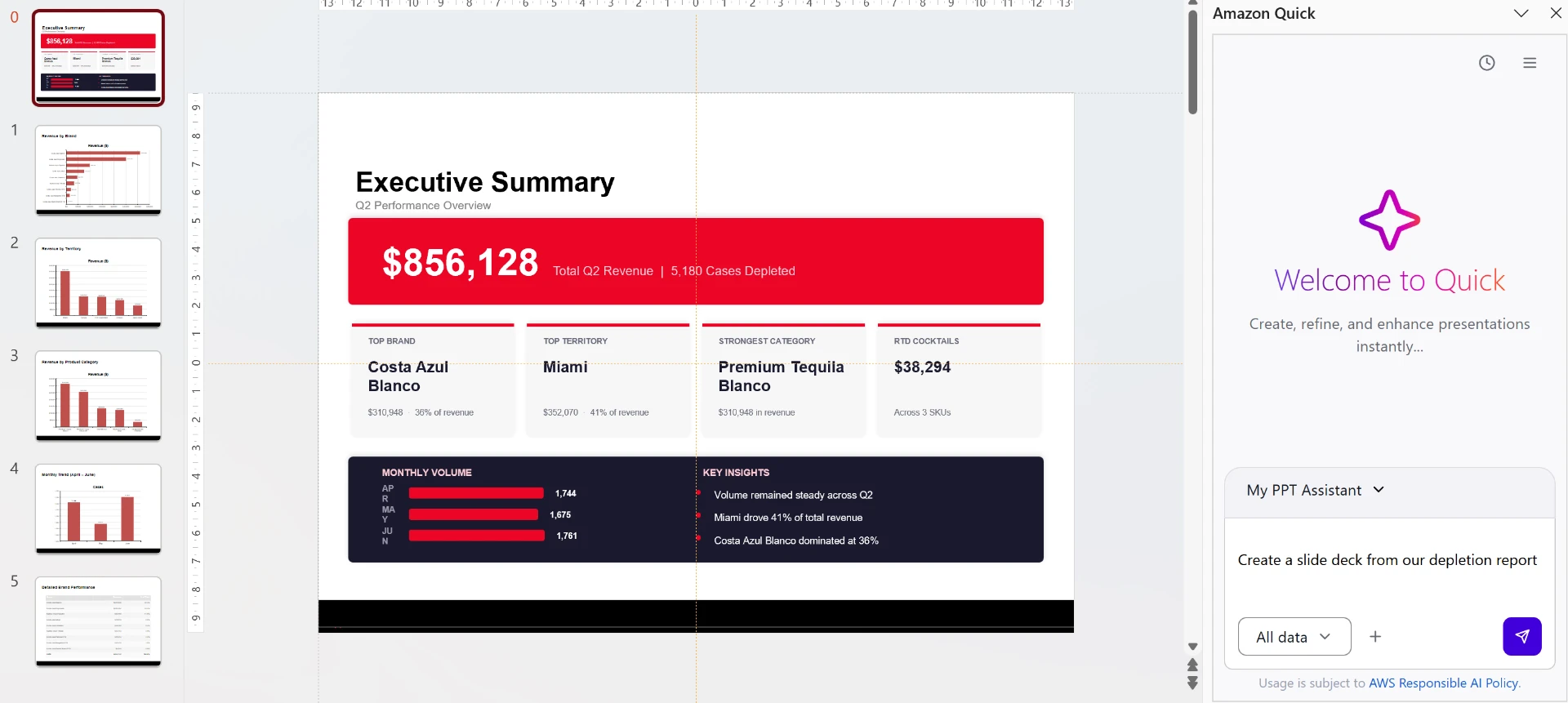
Create a slide deck from our depletion report. Keep the brand template intact. Only add content, do not make changes to the brand.
AI responds well to constraints. Telling it what not to do is as useful as telling it what to do.
Quick showed its plan and asked before proceeding, then produced an executive summary, revenue by brand, territory and category, and a monthly trend, all on the real template.
Also worth asking:
- Make this slide more visual
- Write speaker notes for each slide
- What questions might my distributor customer ask after reading this deck?
- Create an agenda slide for our supplier QBR
- Turn this plain deck into our template
Outlook: replies grounded in your data
A manager emails asking which customers are delivering the weakest margins ahead of an annual pricing conversation.
Instead of writing the reply, attach the margin by customer and SKU spreadsheet in the Quick panel and ask it to respond to that email using the attached data.
Quick reads the file, pulls the answer, and writes the reply.
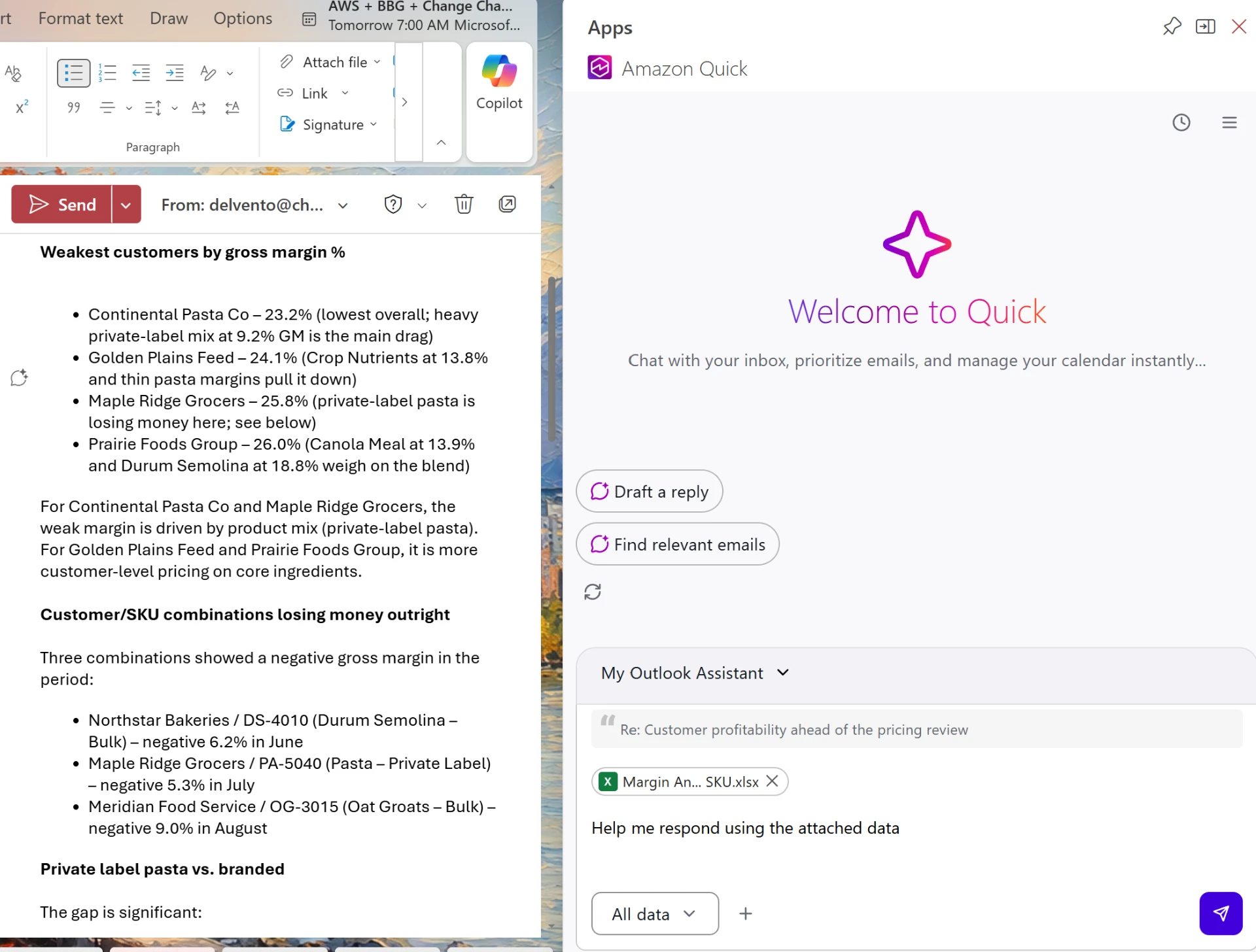
The value is not the writing. Most people already use AI to draft and soften emails. The value is that the analysis and the email happen in one step.
Quick can also schedule the meeting from the same panel. For internal colleagues it checks both calendars. For external contacts it only sees yours.
Teams: catching up
Ask What's the latest in my marketing initiatives channel in Teams?
Quick loads a skill to read Teams messages and returns the updates and your open commitments. Useful after time away or before a status meeting.
What to know before you roll out
- The extensions cover four apps. Word, Excel, PowerPoint and Outlook, on desktop and web. SharePoint, OneDrive and Teams act as connected sources rather than inline surfaces.
- Point it at a source of truth. If your data lives in a file you update elsewhere, connect Quick to the SharePoint or OneDrive location so it always reads the current version rather than a stale copy.
- Check the numbers. Human in the loop. Spot check figures before anything goes out. You own the output, not the tool.
- First output is rarely final. Everyone who built something good iterated on it.
Where rollouts stall
- 1. Sort out access before the session. Sign-in and authentication questions eat the first twenty minutes otherwise.
- 2. Build around their KPIs, not the feature list. Ask how the team makes money and where they lose time, then work backwards to where AI fits.
- 3. Use their files. Generic demos get nods. Their actual RFP or their actual supplier agreement gets someone saying that is what I was about to spend three hours doing.
- 4. Give people a stage. The strongest moments in our sessions are champions demoing what they built. It spreads faster than anything we present.
For resellers and partners
If your client is weighing an expansion from pilot to broader deployment, the gap is rarely technology.
Expansion decisions get made on usage data, and usage moves when people build habits.
That is our work: champions programs, team-by-team enablement on the client's own files, skill and agent builds, and the measurement that justifies the next tranche of licenses.
We are not an Amazon reseller and not a Microsoft reseller. We are an independent adoption and change management firm, so we sit alongside you rather than compete with you.